

Overview
The Logs UI aggregates logs for running workloads across all configured cloud providers and regions. Logs are displayed in a single view, regardless of where the workload replicas are running. Use filters to investigate issues for a specific workload, location, or container. Use Grafana Explore to query, visualize, and analyze log data.LogQL
Control Plane logs use LogQL to query log data. For syntax and query examples, see the LogQL documentation. The following labels can be used to create a query:- container
- gvc
- location
- provider
- replica
- stream
- workload
Log Filters
Query results can be filtered by the following:- Location
- Container
- Start date and optional end date (the date/time selector includes helper buttons ranging from the
Last 5 minutesto theLast 30 days)
Live Logs
Log streams can be viewed in real time using theLive option.
After entering the desired query, click Live to begin streaming logs.
Click Stop to end the live stream.
Grafana
Clicking theExplore on Grafana link opens Grafana in a new tab. When you open Grafana from a specific workload, the query is prefilled with the GVC and workload.
Grafana gives you the ability to “Explore your data through ad-hoc queries and dynamic drill-down. Split view and compare different time ranges, queries, and data sources side by side.”
View the Grafana Explore documentation.
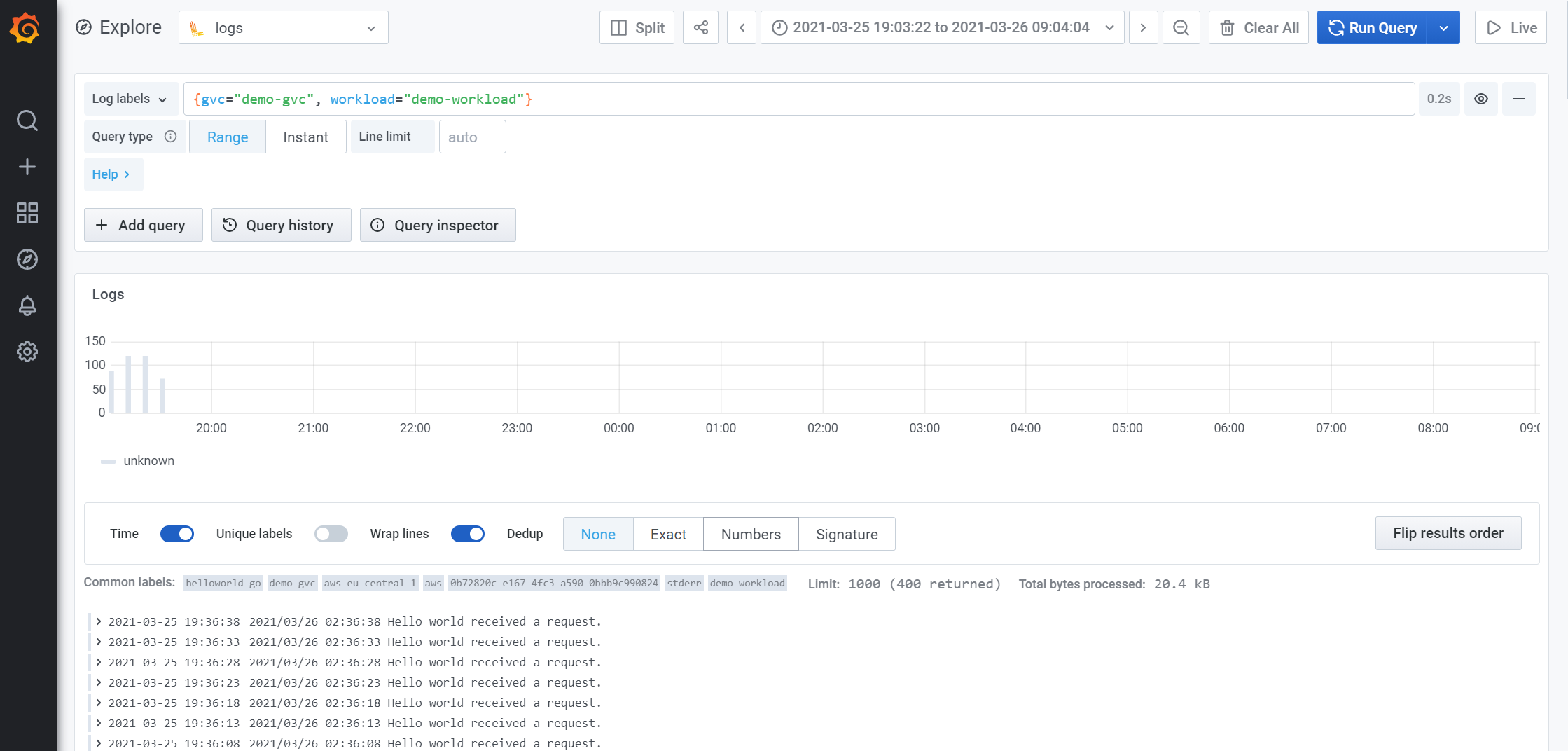
The following image shows the Grafana UI after executing a query:
Example LogQL Queries
Query
- Access logs with errors
Query
- Graph access log errors by replica
Query
- Graph access log errors by workload
Query
- View the logs for a GVC, workload, location, and container
Query
- View logs across all workloads and GVCs
Query
- Count inbound requests by IP
Instant so the results can be returned as a sortable list.
Query
- Count inbound requests by path
Instant so the results can be returned as a sortable list.
Query