> ## Documentation Index
> Fetch the complete documentation index at: https://docs.controlplane.com/llms.txt
> Use this file to discover all available pages before exploring further.
# Jenkins Plugin
> Use the Control Plane Jenkins Plugin to dynamically provision and deprovision Jenkins agent workloads on Control Plane based on job queue load.
## Overview
The Control Plane Jenkins Plugin manages Jenkins agent workloads on Control Plane dynamically — agents are provisioned when jobs enter the queue and deprovisioned when they go idle. Each agent runs as a Control Plane workload inside a GVC, connects back to the Jenkins controller over WebSocket, processes jobs, and is then removed automatically.
This eliminates permanently-running build infrastructure. Agents scale up as job load increases and scale back to zero when idle.
 ## Prerequisites
* A running Jenkins controller (version **2.462.3** or later)
* A Control Plane account and organization
* An API key with the following permissions on your organization:
* List orgs
* List GVCs
* List volume sets *(in the configured GVC)*
* List identities *(in the configured GVC)*
* Read, create, and delete workloads *(in the configured GVC)*
* A GVC with **exactly one location** — the plugin deploys one agent replica per cloud configuration, and multi-location GVCs are not supported
## Installation
The plugin is distributed as an `.hpi` file. You can either build it from source or use the pre-built artifact included in the repository.
### Option A — Build from source
1. Clone the repository:
```sh theme={null}
git clone git@github.com:controlplane-com/cpln-jenkins-plugin.git
```
2. Install [Maven](https://maven.apache.org/download.cgi) and Java 21.
3. From the project root, build the plugin:
```sh theme={null}
mvn clean install
```
The `.hpi` file will be generated at:
```
target/cpln-jenkins-plugin/cpln-jenkins-plugin-2.0.0.hpi
```
### Option B — Use the pre-built artifact
A pre-built `.hpi` is included in the repository under `docs/artifacts/` for convenience. Replace it with a build from source before deploying to production.
### Installing the HPI into Jenkins
1. Go to **Manage Jenkins → Plugins → Advanced**.
2. In the **Deploy Plugin** section, click **Choose File** and select the `.hpi` file.
3. Click **Deploy**.
4. Restart the Jenkins controller and log back in.
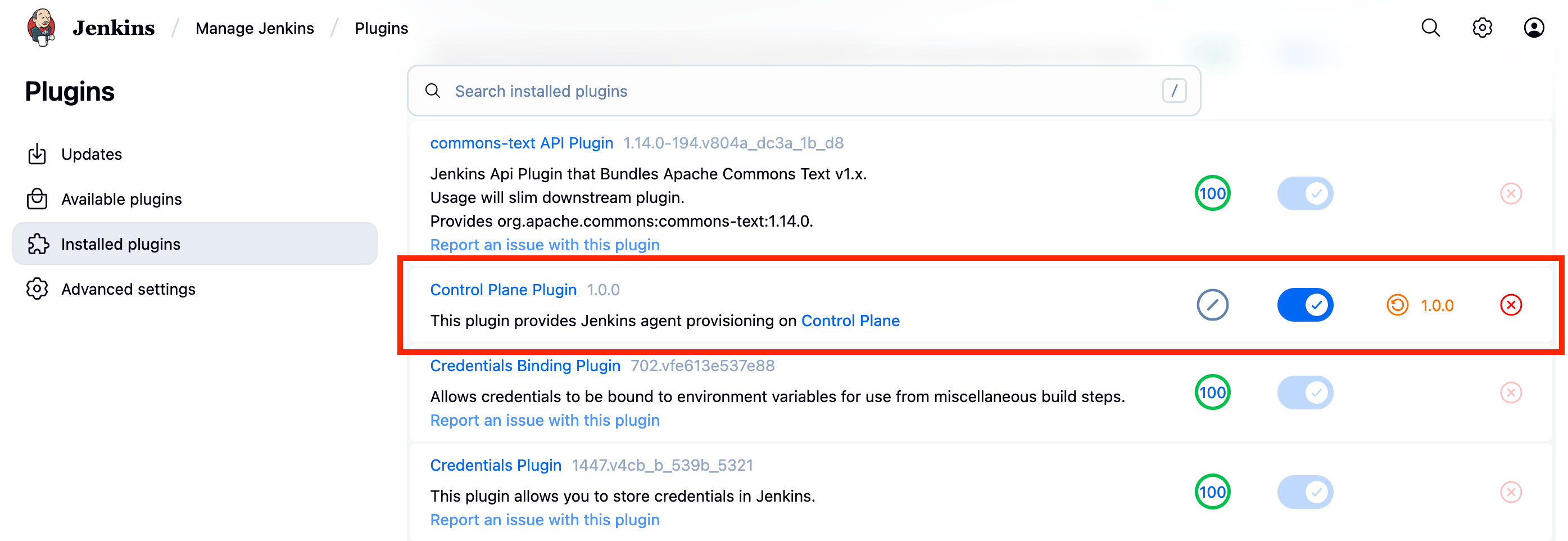
5. Go to **Manage Jenkins → Plugins → Installed Plugins** and verify **Control Plane Plugin** is listed and enabled.
After installation, enable WebSocket agent connections:
* Go to **Manage Jenkins → Security**.
* Under **Agents**, set the **TCP port for inbound agents** to **Random**.
* Save.
## Configuration
### Disable the built-in executor
Before creating cloud configurations, prevent Jenkins from running jobs on its own node:
* Go to **Manage Jenkins → Nodes → Built-In Node → Configure**.
* Set **Number of executors** to `0`.
* Save.
This ensures all jobs are routed to cloud agents rather than the controller.
### Create a cloud configuration
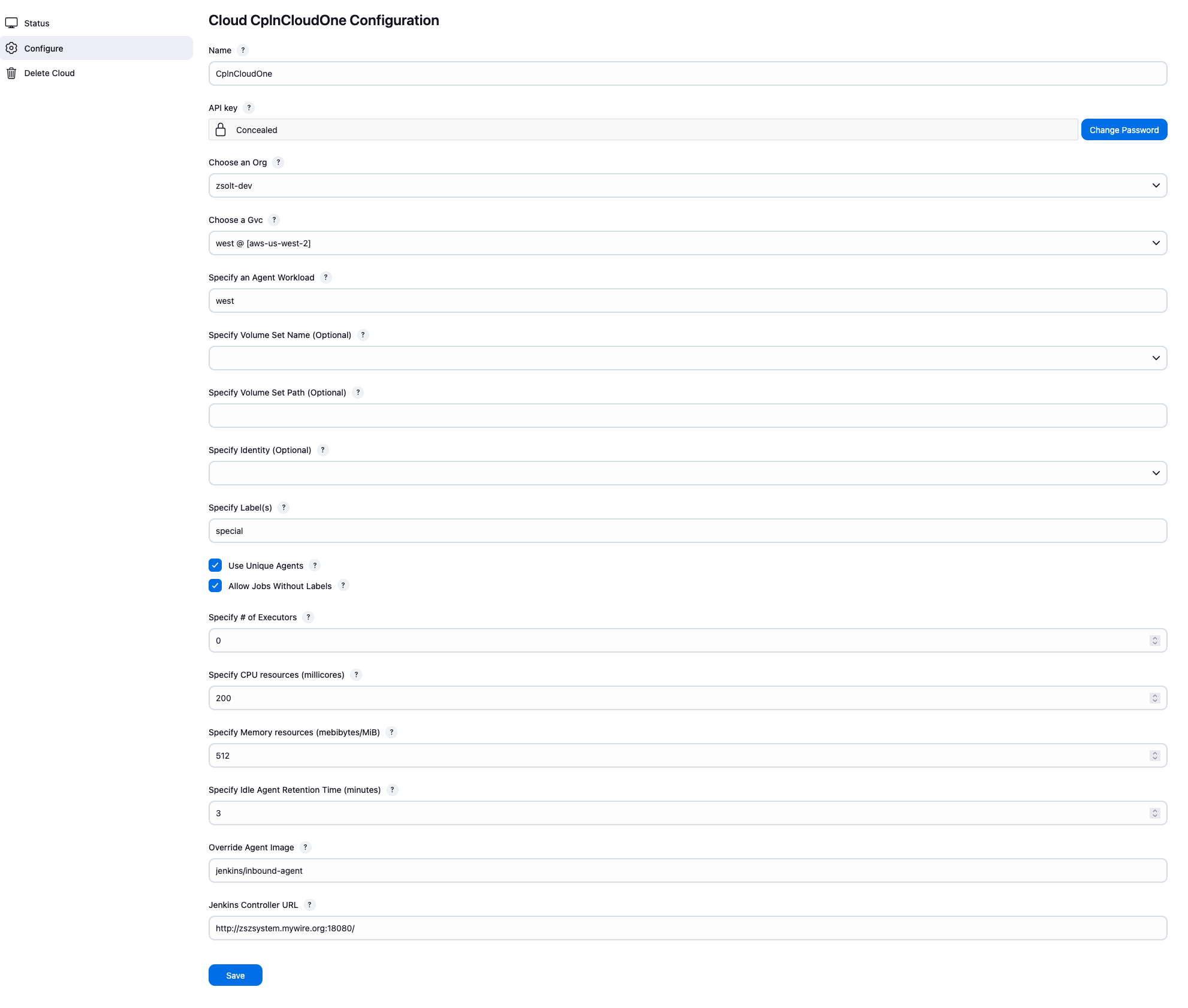
1. Go to **Manage Jenkins → Clouds → New cloud**.
2. Enter a name (e.g., `cpln-us-west`) and select **Control Plane** as the cloud type, then click **Create**.
3. Paste your **API Key**. The plugin will automatically populate the **Org** field with the available organizations.
4. Select the **Org** — this will populate the **GVC** dropdown.
5. Select the **GVC**. Only single-location GVCs are supported.
6. Set the **agent workload name** (e.g., `west-generic`). This is the name used when creating the agent workload in your GVC.
## Prerequisites
* A running Jenkins controller (version **2.462.3** or later)
* A Control Plane account and organization
* An API key with the following permissions on your organization:
* List orgs
* List GVCs
* List volume sets *(in the configured GVC)*
* List identities *(in the configured GVC)*
* Read, create, and delete workloads *(in the configured GVC)*
* A GVC with **exactly one location** — the plugin deploys one agent replica per cloud configuration, and multi-location GVCs are not supported
## Installation
The plugin is distributed as an `.hpi` file. You can either build it from source or use the pre-built artifact included in the repository.
### Option A — Build from source
1. Clone the repository:
```sh theme={null}
git clone git@github.com:controlplane-com/cpln-jenkins-plugin.git
```
2. Install [Maven](https://maven.apache.org/download.cgi) and Java 21.
3. From the project root, build the plugin:
```sh theme={null}
mvn clean install
```
The `.hpi` file will be generated at:
```
target/cpln-jenkins-plugin/cpln-jenkins-plugin-2.0.0.hpi
```
### Option B — Use the pre-built artifact
A pre-built `.hpi` is included in the repository under `docs/artifacts/` for convenience. Replace it with a build from source before deploying to production.
### Installing the HPI into Jenkins
1. Go to **Manage Jenkins → Plugins → Advanced**.
2. In the **Deploy Plugin** section, click **Choose File** and select the `.hpi` file.
3. Click **Deploy**.
4. Restart the Jenkins controller and log back in.
5. Go to **Manage Jenkins → Plugins → Installed Plugins** and verify **Control Plane Plugin** is listed and enabled.
After installation, enable WebSocket agent connections:
* Go to **Manage Jenkins → Security**.
* Under **Agents**, set the **TCP port for inbound agents** to **Random**.
* Save.
## Configuration
### Disable the built-in executor
Before creating cloud configurations, prevent Jenkins from running jobs on its own node:
* Go to **Manage Jenkins → Nodes → Built-In Node → Configure**.
* Set **Number of executors** to `0`.
* Save.
This ensures all jobs are routed to cloud agents rather than the controller.
### Create a cloud configuration
1. Go to **Manage Jenkins → Clouds → New cloud**.
2. Enter a name (e.g., `cpln-us-west`) and select **Control Plane** as the cloud type, then click **Create**.
3. Paste your **API Key**. The plugin will automatically populate the **Org** field with the available organizations.
4. Select the **Org** — this will populate the **GVC** dropdown.
5. Select the **GVC**. Only single-location GVCs are supported.
6. Set the **agent workload name** (e.g., `west-generic`). This is the name used when creating the agent workload in your GVC.
 ### Cloud configuration options
| Setting | Description |
| -------------------------------- | ---------------------------------------------------------------------------------------------------------------------------------------------------------------------------------------- |
| **Volume Set** *(optional)* | A shared volume set from the selected GVC. Must be of type `shared`. If set, the **Volume Set Path** must also be set. |
| **Volume Set Path** *(optional)* | Mount path inside the agent container (e.g., `/mnt/workspace`). |
| **Identity** *(optional)* | A workload identity from the selected GVC, assigned to the agent workload for access to Control Plane secrets or cloud resources. |
| **Labels** | Space-separated labels used for job routing (e.g., `cpln linux-build`). Pattern: `()|(([a-z][-a-z0-9]+)( [a-z][-a-z0-9]+)*)` |
| **Allow jobs without labels** | When checked, unlabeled jobs can run on this cloud. When unchecked, only jobs with a matching label will be picked up. |
| **Number of executors** | Maximum concurrent jobs per agent. Set to `0` to disable the cloud instance. |
| **Unique agent workloads** | When checked, Jenkins provisions a dedicated agent workload per job instead of sharing agents across concurrent jobs. See [Unique Agents](#unique-agents) below. |
| **CPU / Memory** | Resources for each agent workload. Defaults: 200 millicores / 512 MiB. Minimums: 50m CPU / 128 MiB memory. |
| **Idle timeout** | Minutes an agent can be idle before being deprovisioned. Minimum 1 minute. |
| **Jenkins inbound agent image** | Docker image for the agent. Defaults to [`jenkins/inbound-agent`](https://hub.docker.com/r/jenkins/inbound-agent). Must be compatible with standard Jenkins agent environment variables. |
| **Jenkins controller URL** | The URL the agent workload uses to reach the Jenkins controller (must be externally resolvable from the GVC location). |
The Jenkins inbound agent is a Java process. Setting CPU below 50m or memory below 128 MiB will cause agent startup failures or OOM kills. Values of 200m CPU and 256 MiB memory or higher are recommended.
#### Volume sets
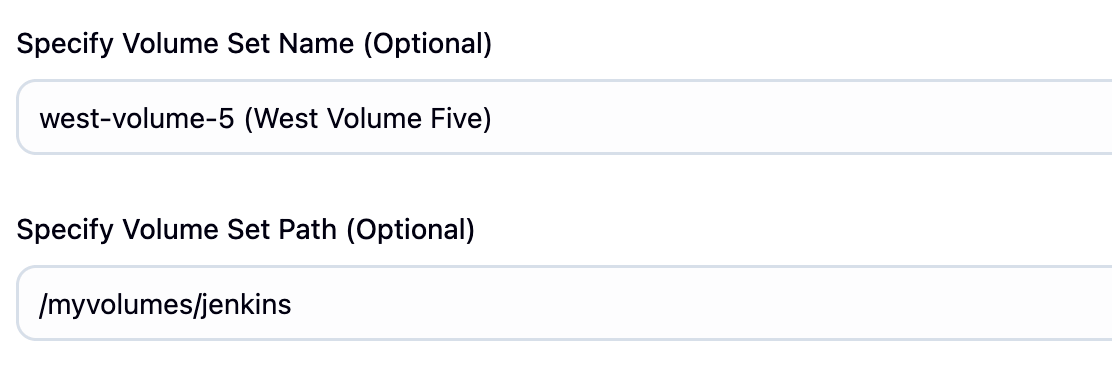
When using a volume set, it **must be of type `shared`**. Volumes of type `ext4` or `xfs` are not supported with standard workloads.
### Cloud configuration options
| Setting | Description |
| -------------------------------- | ---------------------------------------------------------------------------------------------------------------------------------------------------------------------------------------- |
| **Volume Set** *(optional)* | A shared volume set from the selected GVC. Must be of type `shared`. If set, the **Volume Set Path** must also be set. |
| **Volume Set Path** *(optional)* | Mount path inside the agent container (e.g., `/mnt/workspace`). |
| **Identity** *(optional)* | A workload identity from the selected GVC, assigned to the agent workload for access to Control Plane secrets or cloud resources. |
| **Labels** | Space-separated labels used for job routing (e.g., `cpln linux-build`). Pattern: `()|(([a-z][-a-z0-9]+)( [a-z][-a-z0-9]+)*)` |
| **Allow jobs without labels** | When checked, unlabeled jobs can run on this cloud. When unchecked, only jobs with a matching label will be picked up. |
| **Number of executors** | Maximum concurrent jobs per agent. Set to `0` to disable the cloud instance. |
| **Unique agent workloads** | When checked, Jenkins provisions a dedicated agent workload per job instead of sharing agents across concurrent jobs. See [Unique Agents](#unique-agents) below. |
| **CPU / Memory** | Resources for each agent workload. Defaults: 200 millicores / 512 MiB. Minimums: 50m CPU / 128 MiB memory. |
| **Idle timeout** | Minutes an agent can be idle before being deprovisioned. Minimum 1 minute. |
| **Jenkins inbound agent image** | Docker image for the agent. Defaults to [`jenkins/inbound-agent`](https://hub.docker.com/r/jenkins/inbound-agent). Must be compatible with standard Jenkins agent environment variables. |
| **Jenkins controller URL** | The URL the agent workload uses to reach the Jenkins controller (must be externally resolvable from the GVC location). |
The Jenkins inbound agent is a Java process. Setting CPU below 50m or memory below 128 MiB will cause agent startup failures or OOM kills. Values of 200m CPU and 256 MiB memory or higher are recommended.
#### Volume sets
When using a volume set, it **must be of type `shared`**. Volumes of type `ext4` or `xfs` are not supported with standard workloads.
 #### Unique agents
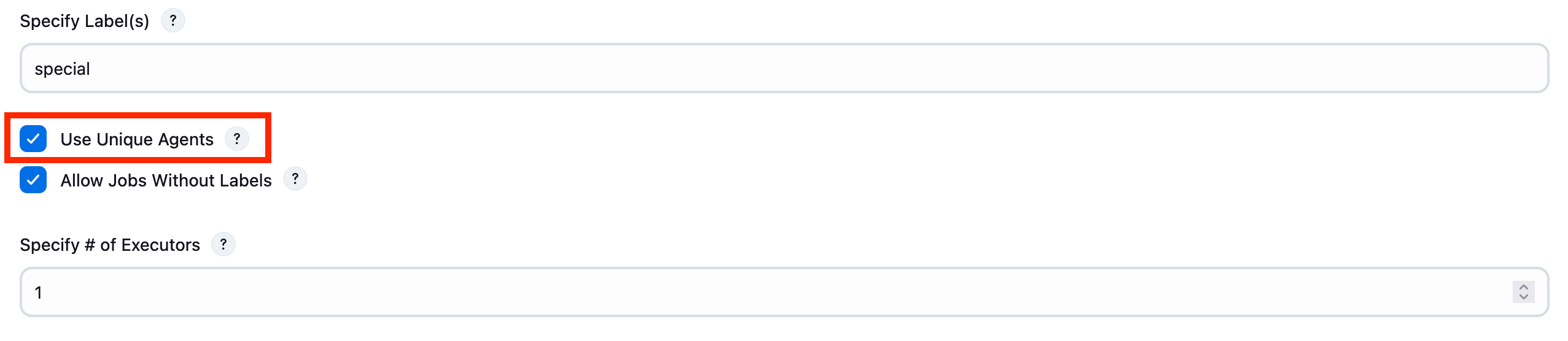
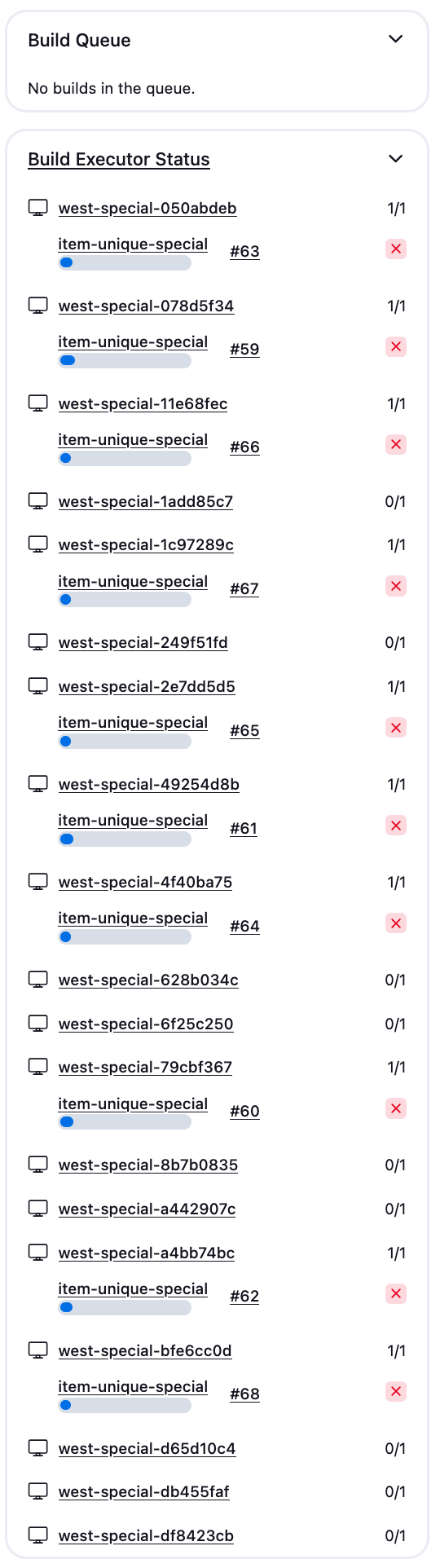
When **Unique agent workloads** is enabled, Jenkins provisions a dedicated agent workload for each job instead of routing multiple jobs to a shared agent. This allows jobs to run fully concurrently regardless of the per-agent executor limit.
Set the cloud's **Number of executors** to `1` when using unique agents so each agent processes exactly one job at a time.
Some over-provisioning of agents is expected on burst loads, short job durations, or when agents take time to start. Unused agents are cleaned up automatically after the idle timeout expires.
#### Unique agents
When **Unique agent workloads** is enabled, Jenkins provisions a dedicated agent workload for each job instead of routing multiple jobs to a shared agent. This allows jobs to run fully concurrently regardless of the per-agent executor limit.
Set the cloud's **Number of executors** to `1` when using unique agents so each agent processes exactly one job at a time.
Some over-provisioning of agents is expected on burst loads, short job durations, or when agents take time to start. Unused agents are cleaned up automatically after the idle timeout expires.
 ## How It Works
### Agent lifecycle
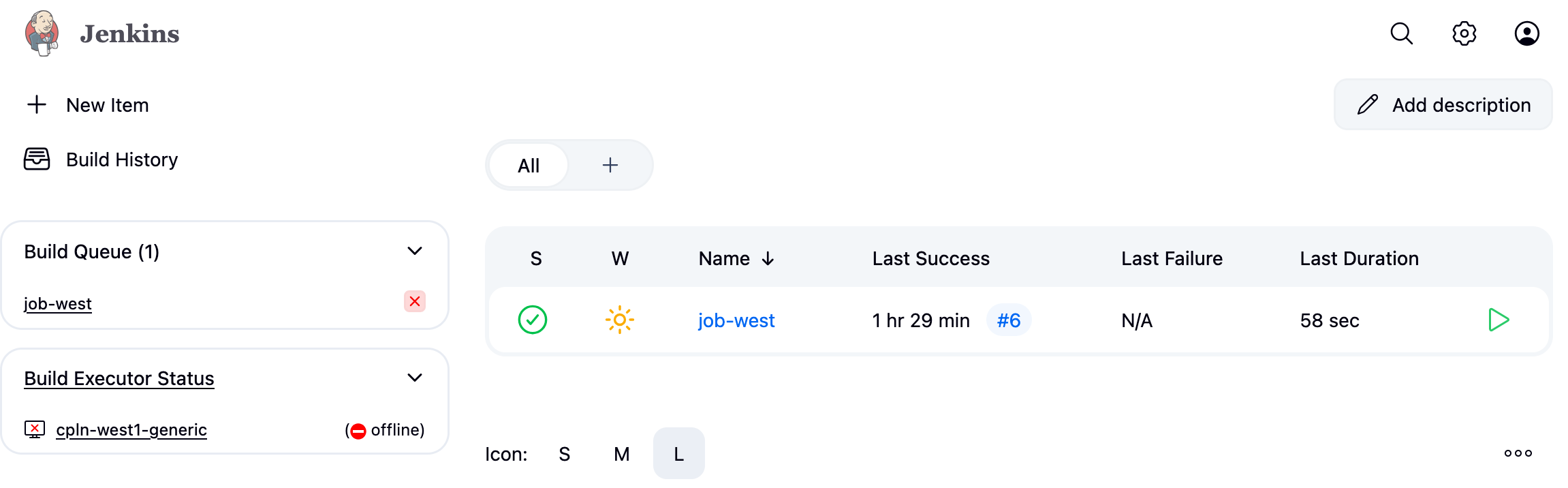
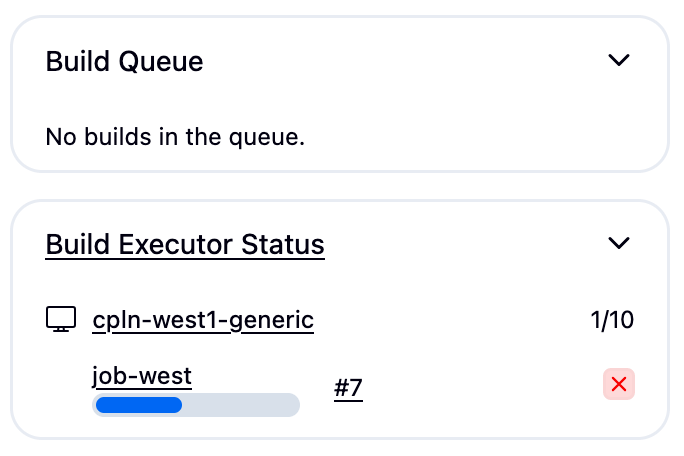
1. A job enters the Jenkins queue.
2. The plugin provisions a new agent workload in the configured GVC.
3. The workload starts, connects back to the Jenkins controller over WebSocket using the configured controller URL.
4. Once connected, the agent picks up the queued job and processes it.
5. After the job completes, the agent remains idle for the configured idle timeout period.
6. If no new jobs arrive within that window, the plugin deletes both the Jenkins agent and the corresponding Control Plane workload.
## How It Works
### Agent lifecycle
1. A job enters the Jenkins queue.
2. The plugin provisions a new agent workload in the configured GVC.
3. The workload starts, connects back to the Jenkins controller over WebSocket using the configured controller URL.
4. Once connected, the agent picks up the queued job and processes it.
5. After the job completes, the agent remains idle for the configured idle timeout period.
6. If no new jobs arrive within that window, the plugin deletes both the Jenkins agent and the corresponding Control Plane workload.
 ### Agent container properties
Agent workloads receive standard Jenkins environment variables (`JENKINS_URL`, `JENKINS_AGENT_NAME`, `JENKINS_SECRET`, etc.) as container properties, enabling the inbound agent to authenticate and connect automatically.
The running agent workload is also visible directly in the Control Plane console:
### Agent container properties
Agent workloads receive standard Jenkins environment variables (`JENKINS_URL`, `JENKINS_AGENT_NAME`, `JENKINS_SECRET`, etc.) as container properties, enabling the inbound agent to authenticate and connect automatically.
The running agent workload is also visible directly in the Control Plane console:
 ## Label-Based Job Routing
The plugin integrates with Jenkins' standard label system, letting you control exactly which cloud handles each job. This is especially useful in multi-cloud environments.
### Configuring labels
Set labels in the **Labels** field of a cloud configuration (space-separated). Example: `cpln linux-build`.
### Restricting a job to Control Plane
1. Open the job configuration.
2. Check **Restrict where this project can be run**.
3. Enter a label expression matching one of the cloud's labels (e.g., `cpln`).
### Multi-cloud example
| Cloud | Labels | Allow unlabeled jobs |
| ------------- | ------ | -------------------- |
| Control Plane | `cpln` | No |
| Kubernetes | `k8s` | No |
| EC2 | `ec2` | Yes |
| Job label expression | Runs on |
| -------------------- | ----------------------------------------- |
| `cpln` | Control Plane only |
| `k8s` | Kubernetes only |
| *(no label)* | EC2 (only cloud accepting unlabeled jobs) |
### Pipeline jobs
Use the `agent` directive with a label expression:
```groovy theme={null}
pipeline {
agent { label 'cpln' }
stages {
stage('Build') {
steps {
sh 'echo "Running on Control Plane agent"'
}
}
}
}
```
To target different clouds for different stages:
```groovy theme={null}
pipeline {
agent none
stages {
stage('Build on CPLN') {
agent { label 'cpln' }
steps {
sh 'echo "Running on Control Plane"'
}
}
stage('Build on K8s') {
agent { label 'k8s' }
steps {
sh 'echo "Running on Kubernetes"'
}
}
}
}
```
## Automatic Cleanup and Health Monitoring
The plugin includes several background mechanisms to recover from failures and prevent resource leaks.
### Workload reconciler
Runs every 60 seconds to detect and remove orphan workloads — Control Plane workloads that have no corresponding Jenkins node. A configurable grace period prevents premature cleanup of workloads that are still starting up.
### Stuck agent detection
Detects agents that are online but have stalled JVMs (high response latency, no channel activity). Agents that remain stuck for the configured grace period with no active builds are cleaned up automatically.
### Stalled build detection
Detects builds where the job script finished but Jenkins never received the completion event. When log output stops, the channel becomes stale, and no progress is observed for an extended period, the plugin forces build interruption and cleans up the agent.
These mechanisms handle scenarios including:
* Handshake failures
* OOM kills
* Fast exits before the agent registers
* Abnormal WebSocket terminations
* Controller restarts
* JVM stalls from CPU overload
## Important Notes
* **Removing an agent from Jenkins** also removes the corresponding workload from the Control Plane GVC.
* **Forcefully removing a workload from Control Plane** (outside Jenkins) may cause the plugin to recreate it if there are jobs in the queue for that cloud configuration.
* **Unlabeled jobs** may be picked up by any cloud instance with `Allow jobs without labels` enabled. If no agents are running, one will be provisioned to handle the job.
* **Jobs with no matching cloud** remain queued indefinitely until either the cloud configuration is updated or the job's label requirement is changed.
* **Agent workloads use WebSocket** to connect to the Jenkins controller. The controller must be reachable over HTTP/HTTPS from the GVC's location.
* **TLS between controller and agents** is not configured by the plugin itself. Refer to standard Jenkins TLS documentation for securing the controller endpoint:
* [Enabling HTTPS in Jenkins (Baeldung)](https://www.baeldung.com/ops/jenkins-enable-https)
* [Jenkins community HTTPS discussion](https://community.jenkins.io/t/what-is-best-recommended-way-to-enable-https-into-jenkins/26878)
* **Provisioning cooldown** (default: 60 seconds) prevents over-provisioning when agents take time to connect. For unique agents, this stops Jenkins from creating duplicate agents for the same job. The cooldown clears automatically once an agent successfully connects.
* **Jenkins provisioning parameters** `MARGIN`, `MARGIN0`, and `MARGIN_DECAY` can be used to fine-tune load-based provisioning behavior. Consult the Jenkins documentation for details.
## External References
Control Plane platform documentation
Official Jenkins documentation
Default agent Docker image used by the plugin
Source code, issues, and releases
## Label-Based Job Routing
The plugin integrates with Jenkins' standard label system, letting you control exactly which cloud handles each job. This is especially useful in multi-cloud environments.
### Configuring labels
Set labels in the **Labels** field of a cloud configuration (space-separated). Example: `cpln linux-build`.
### Restricting a job to Control Plane
1. Open the job configuration.
2. Check **Restrict where this project can be run**.
3. Enter a label expression matching one of the cloud's labels (e.g., `cpln`).
### Multi-cloud example
| Cloud | Labels | Allow unlabeled jobs |
| ------------- | ------ | -------------------- |
| Control Plane | `cpln` | No |
| Kubernetes | `k8s` | No |
| EC2 | `ec2` | Yes |
| Job label expression | Runs on |
| -------------------- | ----------------------------------------- |
| `cpln` | Control Plane only |
| `k8s` | Kubernetes only |
| *(no label)* | EC2 (only cloud accepting unlabeled jobs) |
### Pipeline jobs
Use the `agent` directive with a label expression:
```groovy theme={null}
pipeline {
agent { label 'cpln' }
stages {
stage('Build') {
steps {
sh 'echo "Running on Control Plane agent"'
}
}
}
}
```
To target different clouds for different stages:
```groovy theme={null}
pipeline {
agent none
stages {
stage('Build on CPLN') {
agent { label 'cpln' }
steps {
sh 'echo "Running on Control Plane"'
}
}
stage('Build on K8s') {
agent { label 'k8s' }
steps {
sh 'echo "Running on Kubernetes"'
}
}
}
}
```
## Automatic Cleanup and Health Monitoring
The plugin includes several background mechanisms to recover from failures and prevent resource leaks.
### Workload reconciler
Runs every 60 seconds to detect and remove orphan workloads — Control Plane workloads that have no corresponding Jenkins node. A configurable grace period prevents premature cleanup of workloads that are still starting up.
### Stuck agent detection
Detects agents that are online but have stalled JVMs (high response latency, no channel activity). Agents that remain stuck for the configured grace period with no active builds are cleaned up automatically.
### Stalled build detection
Detects builds where the job script finished but Jenkins never received the completion event. When log output stops, the channel becomes stale, and no progress is observed for an extended period, the plugin forces build interruption and cleans up the agent.
These mechanisms handle scenarios including:
* Handshake failures
* OOM kills
* Fast exits before the agent registers
* Abnormal WebSocket terminations
* Controller restarts
* JVM stalls from CPU overload
## Important Notes
* **Removing an agent from Jenkins** also removes the corresponding workload from the Control Plane GVC.
* **Forcefully removing a workload from Control Plane** (outside Jenkins) may cause the plugin to recreate it if there are jobs in the queue for that cloud configuration.
* **Unlabeled jobs** may be picked up by any cloud instance with `Allow jobs without labels` enabled. If no agents are running, one will be provisioned to handle the job.
* **Jobs with no matching cloud** remain queued indefinitely until either the cloud configuration is updated or the job's label requirement is changed.
* **Agent workloads use WebSocket** to connect to the Jenkins controller. The controller must be reachable over HTTP/HTTPS from the GVC's location.
* **TLS between controller and agents** is not configured by the plugin itself. Refer to standard Jenkins TLS documentation for securing the controller endpoint:
* [Enabling HTTPS in Jenkins (Baeldung)](https://www.baeldung.com/ops/jenkins-enable-https)
* [Jenkins community HTTPS discussion](https://community.jenkins.io/t/what-is-best-recommended-way-to-enable-https-into-jenkins/26878)
* **Provisioning cooldown** (default: 60 seconds) prevents over-provisioning when agents take time to connect. For unique agents, this stops Jenkins from creating duplicate agents for the same job. The cooldown clears automatically once an agent successfully connects.
* **Jenkins provisioning parameters** `MARGIN`, `MARGIN0`, and `MARGIN_DECAY` can be used to fine-tune load-based provisioning behavior. Consult the Jenkins documentation for details.
## External References
Control Plane platform documentation
Official Jenkins documentation
Default agent Docker image used by the plugin
Source code, issues, and releases