> ## Documentation Index
> Fetch the complete documentation index at: https://docs.controlplane.com/llms.txt
> Use this file to discover all available pages before exploring further.
# Configure a CDN
> Set up a Content Delivery Network such as Cloudflare or Amazon CloudFront to protect and accelerate your workloads on Control Plane.
Configuring a Content Delivery Network (CDN), such as [Cloudflare](https://cloudflare.com), protects and accelerates your [workload](/reference/workload) running at Control Plane.
The configuration of various CDN providers is similar in concept. In this guide, you will find the steps on how to configure a CDN with [Cloudflare](#cloudflare-configuration-steps) and [Amazon CloudFront](#amazon-cloudfront-configuration-steps).
Configure your domain’s CNAME to target either a `GVC endpoint` or a `Workload endpoint`.
A [GVC](/reference/gvc) endpoint routes traffic across all domains mapped to the same GVC and is useful when a single CDN route is configured for many domains or wildcard subdomains. GEO routing still applies, but traffic will be sent to all locations even if a specific workload in one location is unavailable.
A workload endpoint routes traffic to a specific workload within a GVC and provides more precise geo routing and failover for that workload.
If a workload in one location is down, traffic will fail over to other locations for just that workload.
## Cloudflare Configuration Steps
### Prerequisites
* Review the [Configure a Domain](/guides/configure-domain) guide.
* An account at Cloudflare.
* Your Domain's DNS is hosted at Cloudflare.
* Your Workload is configured and in a `Ready` state.
### Step One - Domain Set Up and Certificate Generation at Cloudflare
**From the Cloudflare UI, perform the following:**
#### Domain Set Up
* From the DNS management page for your domain, add a new `CNAME` record.
* For the `Name` field, enter the desired target subdomain.
* For the `Target` field, enter the `Canonical Endpoint` URL from the [Workload's](/reference/workload) Info page.
* Toggle on the `Proxied` switch.
#### Certificate Generation Set Up
* From the SSL/TLS page, select the `Full (strict)` radio box.
* Click on the `Origin Server` submenu link.
* Create a new origin certificate for your domain with the following settings. This certificate will be added as a [TLS Secret](/reference/secret#tls) at Control Plane.
* Select `Generate private key and CSR with Cloudflare`.
* Select the Private key type: `RSA (2048)`.
* The default list of hostnames shouldn't have to be changed and will contain the `*.DOMAIN` and `DOMAIN` hostnames.
* Choose a long Certificate Validity such as 15 years.
* **NOTE: It is your responsibility to ensure the certificate mapped to your domain at Control Plane is valid.**
* Click `Create`. The next page will display the certificate and private key. You may save these as separate text files or leave the page open and copy/paste the values when creating the [TLS Secret](/reference/secret#tls) at Control Plane in [Step Two](#step-two---certificate-set-up-at-control-plane).
### Step Two - Certificate Set Up at Control Plane
* Using the certificate and private key generated in [Step One - Certificate Generation Set Up](#certificate-generation-set-up), create a new [TLS Secret](/reference/secret#tls) at Control Plane by performing the following:
* Click `Secrets` from the left side menu.
* Click the `New` button at the top.
* Enter a `Name` for the secret and select the secret type `TLS`.
* Either upload or paste the respective certificate and private key file in the proper textbox. The TLS Chain can be left empty since this certificate is self-signed.
* Click `Create`. This secret will be used when configuring your domain in [Step Three - Domain Set Up at Control Plane](#step-three---domain-set-up-at-control-plane).
### Step Three - Domain Set Up at Control Plane
Follow the steps below to configure your Domain at Control Plane.
**Note: If a subdomain is being configured, the APEX domain will need to be [verified](/guides/configure-domain#step-one-apex-domain-verification).**
* Click `Domains` from the left side menu.
* Click the `New` button at the top.
* Enter the `Fully Qualified Domain Name (FQDN)` of your Domain.
* Click `Next (Spec)`.
* Select `CNAME` for the `DNS Mode`.
* Select and configure the desired `Routing Mode`.
* Click the `Advanced Button` button and Toggle on the `Configure TLS` switch.
* Toggle on the `Use Custom Server Certificate` and select the [TLS Secret](/reference/secret#tls) created in [Step Two](#step-two---certificate-set-up-at-control-plane).
* Click `Next (DNS)`.
* This page will display any DNS records that are required to be added for your domain. After adding the records, it will take a few minutes to propagate. Click the checkbox and click `Create`.
After completing Steps One through Three, it will take a few minutes for the updates to propagate throughout the Internet.
Once fully configured, your Workload will be accessible, via the CDN, using the subdomain configured in [Step One - Domain Set Up](#domain-set-up).
## Amazon CloudFront Configuration Steps
### Prerequisites
* An AWS account.
* Access to edit DNS setting for your Domain.
* Your Workload is configured and in a `Ready` state.
### Step One - Request a public certificate
Request a public certificate with [AWS Certificate Manager (ACM)](https://us-east-1.console.aws.amazon.com/acm/home?region=us-east-1#/certificates/request) in `N. Virginia` region using the setting below.
1. A public TLS certificate is required for your domain. Use the following settings:
* Domain Names: `subdomain.mydomain.com` or `*.mydomain.com`
* Validation Method: `DNS Validation`
* Key Algorithm: `RSA 2048`
The certificate must be in the US East (N. Virginia) Region (us-east-1).
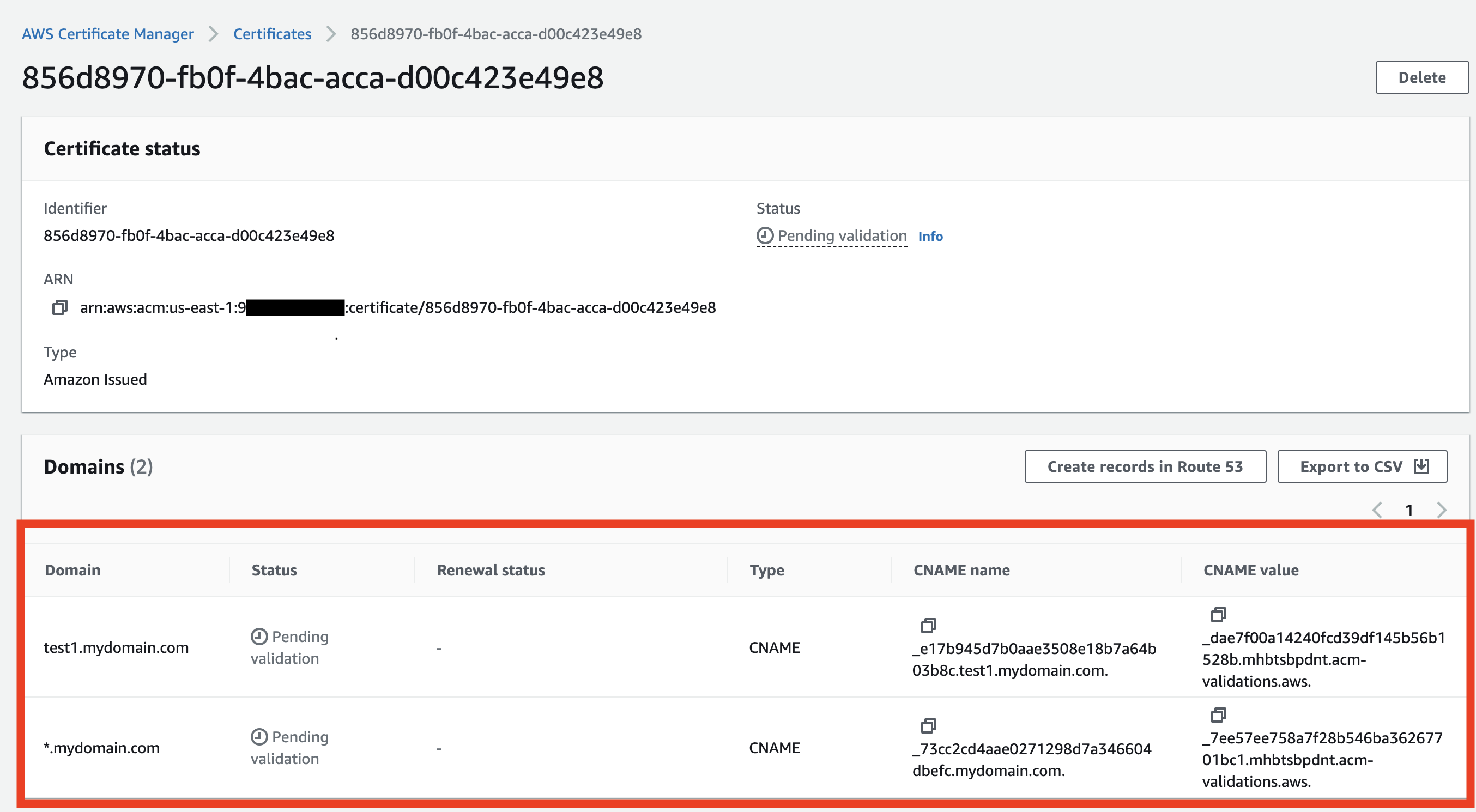
2. Access the newly created certificate on the [ACM](https://us-east-1.console.aws.amazon.com/acm/home?region=us-east-1#/certificates/list). Validate the certificate by creating the records in your DNS service as described.
 ### Step Two - Create CloudFront distribution
1. Go to [CloudFront distributions page](https://us-east-1.console.aws.amazon.com/cloudfront/v4/home#/distributions) and click on `Create Distribution`
2. Configure the `Origin Domain` to the public endpoint of your workload. Use one of the following methods, depending on whether you are using a [**BYOK location**](/byok/overview) or a **managed locations (standard)**:
* For **managed locations (standard)** only:
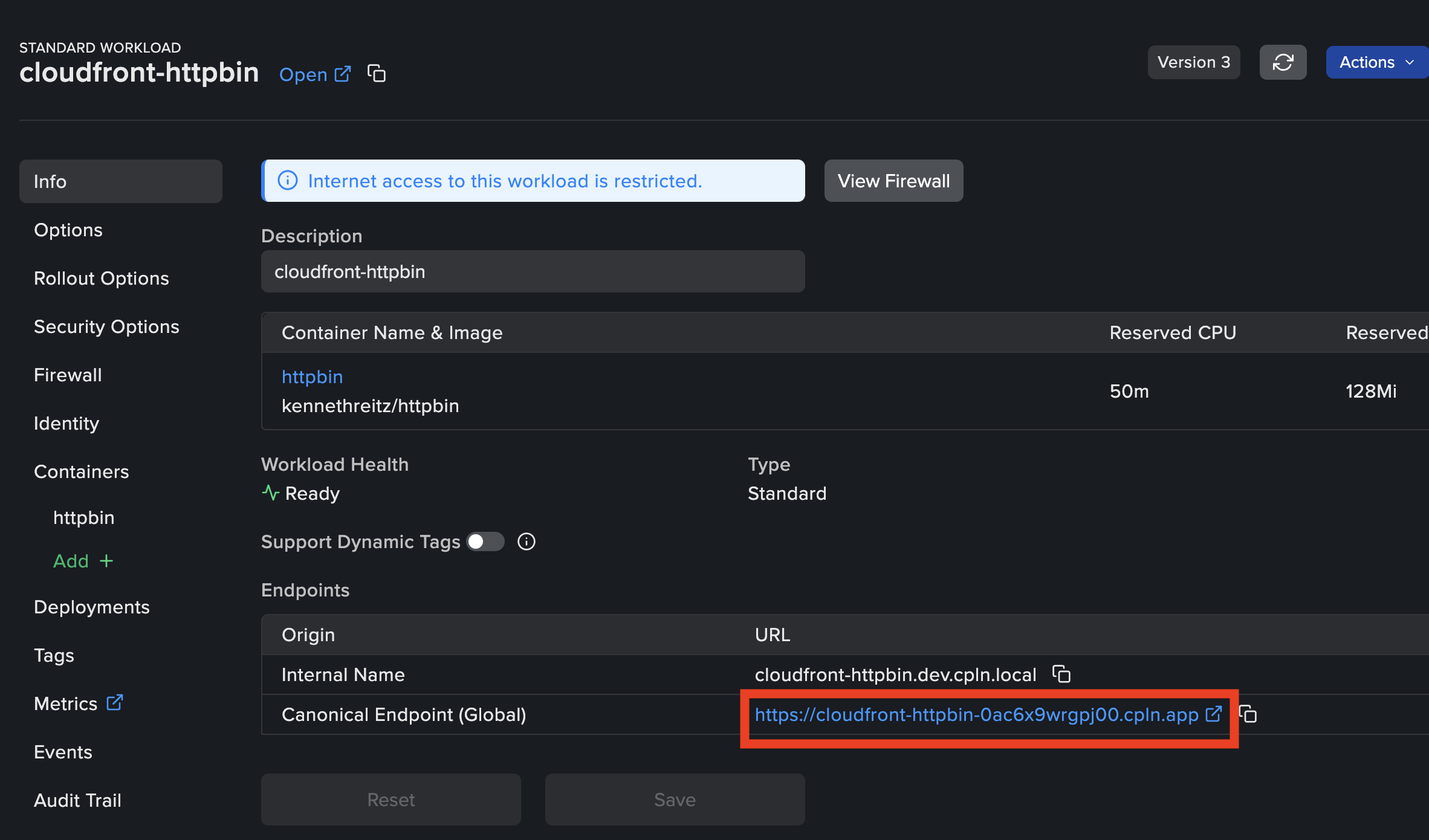
Use the `Canonical Endpoint` URL from the [Workload's Info page](/reference/workload) as `Origin Domain`, formatted as follows: `cloudfront-httpbin-0ac6x9wrgpj00.cpln.app`.
### Step Two - Create CloudFront distribution
1. Go to [CloudFront distributions page](https://us-east-1.console.aws.amazon.com/cloudfront/v4/home#/distributions) and click on `Create Distribution`
2. Configure the `Origin Domain` to the public endpoint of your workload. Use one of the following methods, depending on whether you are using a [**BYOK location**](/byok/overview) or a **managed locations (standard)**:
* For **managed locations (standard)** only:
Use the `Canonical Endpoint` URL from the [Workload's Info page](/reference/workload) as `Origin Domain`, formatted as follows: `cloudfront-httpbin-0ac6x9wrgpj00.cpln.app`.
 * For [**BYOK locations**](/byok/overview) only:
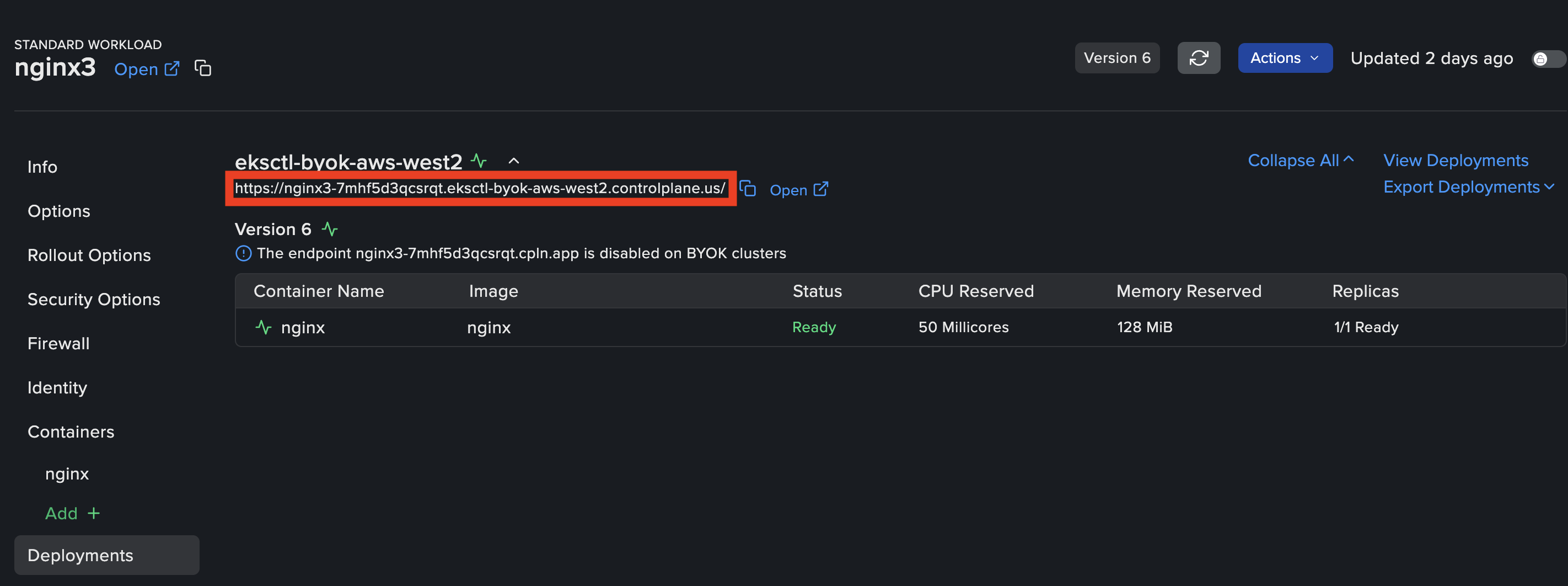
Locate the public endpoint on your Workload's *Deployments* page. Use this address as the `Origin Domain` value in CloudFront, formatted as follows: `nginx3-7mhf5d3qcsrqt.eksctl-byok-aws-west2.controlplane.us`.
* For [**BYOK locations**](/byok/overview) only:
Locate the public endpoint on your Workload's *Deployments* page. Use this address as the `Origin Domain` value in CloudFront, formatted as follows: `nginx3-7mhf5d3qcsrqt.eksctl-byok-aws-west2.controlplane.us`.
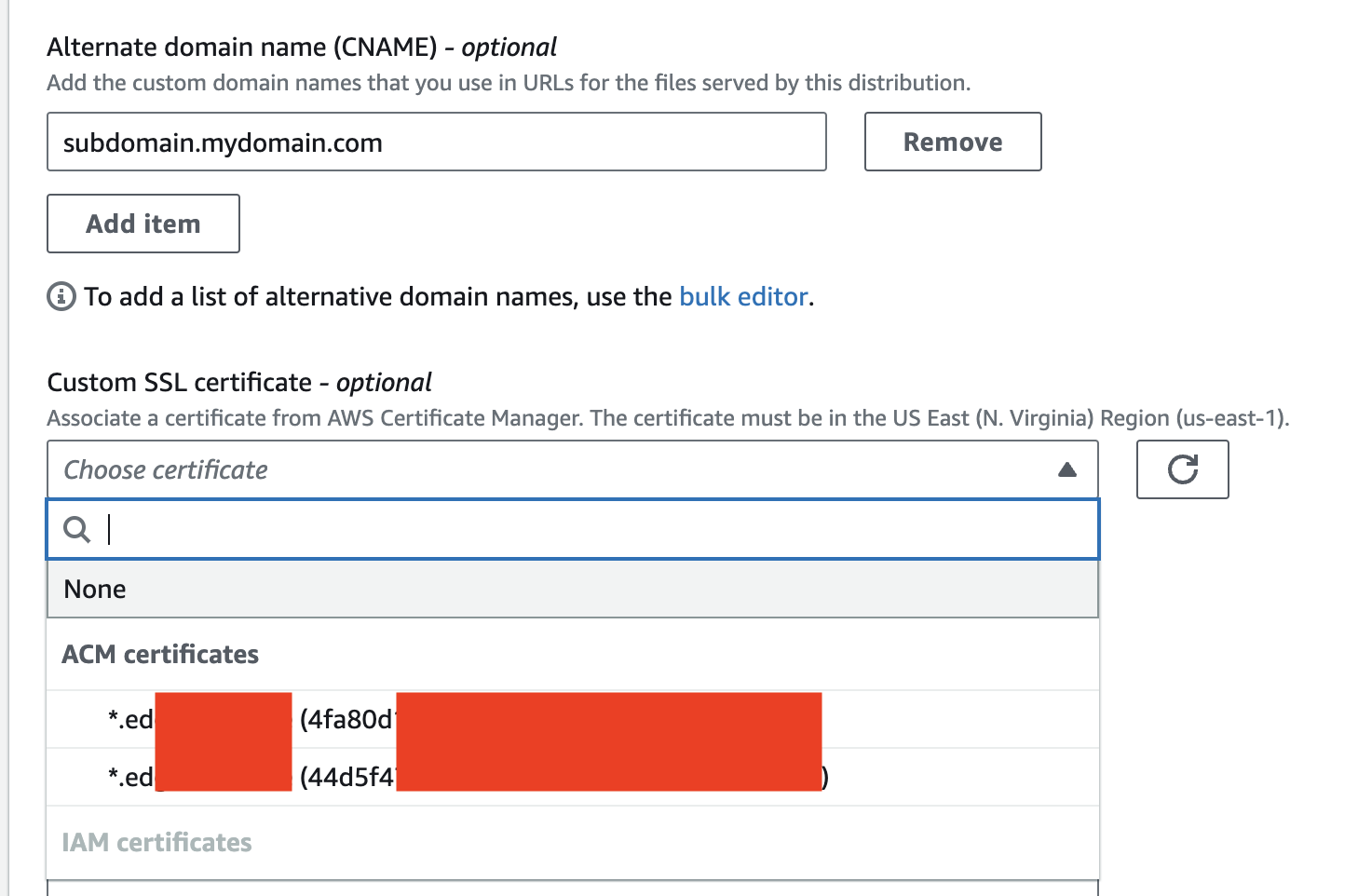
 3. Edit the `Alternate domain name` for your domain. In the format: `subdomain.mydomain.com`.\
Then select the `Custom SSL certificate` created in [Step One - Request a public certificate](#step-one---request-a-public-certificate) from the list.
3. Edit the `Alternate domain name` for your domain. In the format: `subdomain.mydomain.com`.\
Then select the `Custom SSL certificate` created in [Step One - Request a public certificate](#step-one---request-a-public-certificate) from the list.
 4. You must select `Cache policy` and complete the rest of the configuration as needed.
5. Click on `Create distribution` and wait for a few minutes to changes to apply.
By now, you should have CloudFront distribution ready.
4. You must select `Cache policy` and complete the rest of the configuration as needed.
5. Click on `Create distribution` and wait for a few minutes to changes to apply.
By now, you should have CloudFront distribution ready.
 ### Step Three - Configure DNS
Create a CNAME record in your DNS service (such as Route53), that will match the *Alternate domain name* in the CloudFront distribution created in [Step Two - Create CloudFront distribution](#step-two---create-cloudfront-distribution):
* Type: CNAME
* Name: nginx3
* Data: dddddddd.cloudfront.net
### Step Four - Configuring Firewall to restrict access via CloudFront
* In order to ensure that it's not possible to directly access the workload's endpoint without going through the CloudFront CDN first, configure the firewall settings for the workload to allow ingress for CloudFront [list of ip ranges](https://d7uri8nf7uskq.cloudfront.net/tools/list-cloudfront-ips). You can refer to [this example workload YAML file](https://cpln-public-bucket.s3.amazonaws.com/nginx3-workload-cloudfront-example.yaml) and copy the CIDR range directly from this manifest.
* **BYOK Only**: If you have created inbound rules on the Security Group of the Load Balancers, either directly or using the Actuator configuration [INGRESS\_FIREWALL\_CIDR\_LIST](/byok/settings/actuator), you will need to update the Security Group configuration with CloudFront CIDR list range to enable CloudFront access to the workloads. **Important**: To support this setting, ensure that your quota for `Inbound or outbound rules per security group` under `Amazon Virtual Private Cloud (Amazon VPC)` values for at least **530** rules. Visit [Service Quotas](https://console.aws.amazon.com/servicequotas/home/dashboard) in the AWS console for your region to request a quota increase if necessary.
### Step Three - Configure DNS
Create a CNAME record in your DNS service (such as Route53), that will match the *Alternate domain name* in the CloudFront distribution created in [Step Two - Create CloudFront distribution](#step-two---create-cloudfront-distribution):
* Type: CNAME
* Name: nginx3
* Data: dddddddd.cloudfront.net
### Step Four - Configuring Firewall to restrict access via CloudFront
* In order to ensure that it's not possible to directly access the workload's endpoint without going through the CloudFront CDN first, configure the firewall settings for the workload to allow ingress for CloudFront [list of ip ranges](https://d7uri8nf7uskq.cloudfront.net/tools/list-cloudfront-ips). You can refer to [this example workload YAML file](https://cpln-public-bucket.s3.amazonaws.com/nginx3-workload-cloudfront-example.yaml) and copy the CIDR range directly from this manifest.
* **BYOK Only**: If you have created inbound rules on the Security Group of the Load Balancers, either directly or using the Actuator configuration [INGRESS\_FIREWALL\_CIDR\_LIST](/byok/settings/actuator), you will need to update the Security Group configuration with CloudFront CIDR list range to enable CloudFront access to the workloads. **Important**: To support this setting, ensure that your quota for `Inbound or outbound rules per security group` under `Amazon Virtual Private Cloud (Amazon VPC)` values for at least **530** rules. Visit [Service Quotas](https://console.aws.amazon.com/servicequotas/home/dashboard) in the AWS console for your region to request a quota increase if necessary.